

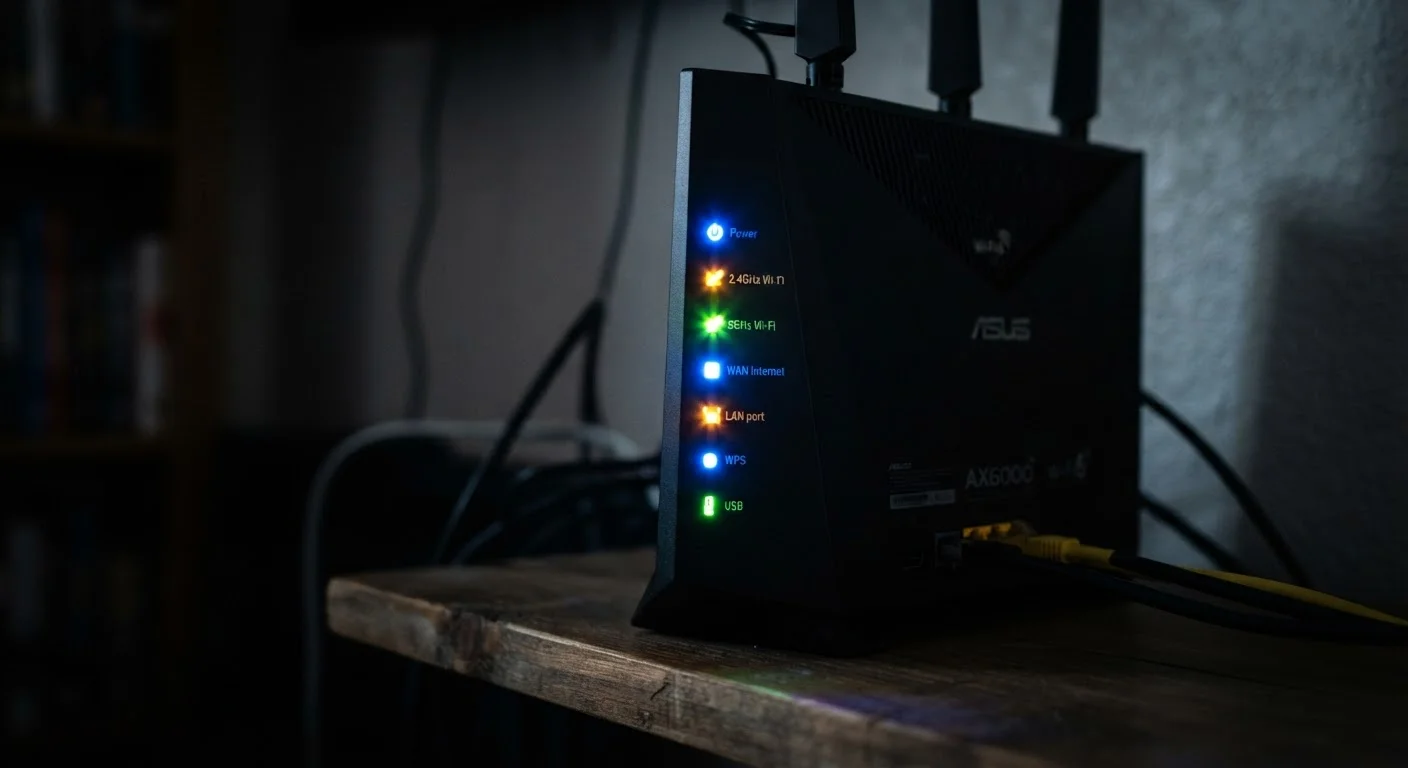
Why Router Lights Matter More Than You Think
Most people glance at their router, notice some lights blinking, and assume everything is fine. Others see an unusual color and immediately panic. In reality, those LEDs are a concise, built-in diagnostic panel - and reading them correctly can save you a call to your ISP or an unnecessary technician visit.
Understanding your router's status lights connects directly to understanding how your home network functions as a whole. If you've ever wondered how all your streaming devices, phones, and smart gadgets stay in sync, our overview on how home devices talk to each other provides useful background. Once you have that foundation, the lights on your router start to tell a clearer story.
~80%
Home internet issues resolved without a technician
Industry support data broadly suggests the large majority of residential connectivity problems can be resolved through basic troubleshooting steps a homeowner can perform, including restarting equipment and checking physical connections.
4-6
Typical number of LED indicators on a home router
Most consumer-grade routers include between four and six status LEDs covering power, internet, Wi-Fi bands, and LAN ports, though mesh systems and advanced routers may use fewer or more.
The Common LED Indicators and What They Represent
Most home routers share a set of standard indicator lights, even if their labels and colors differ. Here's what each typically monitors:
- Power: Confirms the router is receiving electricity. Solid on is normal; off means no power.
- Internet / WAN: The most critical light. It shows whether your router has successfully connected to your ISP's network. Green or white solid means you're online; amber or red signals a problem upstream.
- 2.4 GHz / 5 GHz / 6 GHz Wi-Fi: These indicate whether each wireless band is broadcasting. Blinking means devices are exchanging data on that band; solid means the band is active but idle.
- LAN (1-4): One light per Ethernet port. Solid means a device is physically connected; blinking means data is moving across that wired connection.
- USB: Present on routers with USB ports for shared storage or printers. Blinking indicates active file transfer.
- WPS: Blinks when the router is in pairing mode to connect a new device without a password.
The underlying technology your home internet uses - fiber, cable, or DSL - can influence which lights appear and what they mean. Our explainer on home internet connection types breaks down those differences clearly.
Decoding Color and Blink Patterns
Color and behavior together form the full message. Below are the most common combinations and their general meanings across the majority of consumer routers:
| Light State | What It Typically Means |
|---|---|
| Solid green / white | Normal operation - connection is healthy |
| Blinking green / white | Active data transfer - entirely normal |
| Solid amber / orange | Partial connectivity or a slower-than-expected link speed |
| Blinking amber | Attempting to establish a connection or firmware updating |
| Solid red | No internet connection or hardware fault |
| No light | Power off, port unused, or feature disabled |
Think of it similarly to how your car's dashboard communicates with you - a concept explored in our companion article on car warning lights. The principle is the same: color signals severity, and pattern signals activity versus error.
Your Router's Manual Is a Quick Reference
Manufacturers publish LED legend tables in both the printed manual and online support documentation. If you no longer have the paper manual, searching your router's model number plus 'LED indicator guide' on the manufacturer's website will usually surface a precise color-and-state table within seconds. This is the most reliable reference since LED meanings are not universal.
What to Do When a Light Signals Trouble
When the internet or WAN light turns red or goes out entirely, work through this sequence before calling your provider:
- Check your modem first. If you have a separate modem, look at its lights. If it also shows an error state, the problem is likely between your home and the ISP - not your router.
- Restart both devices. Power off your modem, wait 30 seconds, then power it back on. Once its lights stabilize, restart the router. This clears many temporary connectivity faults.
- Inspect your cables. A loose coaxial or Ethernet cable between the wall and your modem is a surprisingly common culprit.
- Check for service outages. Most ISPs provide an outage map or status page. A widespread outage means the fix is on their end.
- Consult your router's documentation. Because LED meanings vary by manufacturer, your device's manual or the brand's support site is the authoritative reference for your specific model.
There's also a persistent myth that restarting your router regularly degrades performance or that you need to replace it frequently - claims worth scrutinizing. Our piece on common home internet myths addresses several of these misconceptions with straightforward facts.
A family's streaming service keeps buffering despite paying for a high-speed plan. They notice the internet light on their router is solid amber rather than green.
A remote worker notices their router's LAN port light, which is normally blinking, has gone completely dark for the port connected to their desktop computer.
A homeowner sees all lights on their router cycling through colors in a repeating pattern for about ten minutes.
Frequently Asked Questions
Amber or orange typically signals a degraded or limited connection - for example, a device connected at a slower speed than the port supports, or the router attempting to establish an internet link. It can also indicate a firmware update in progress. Check your router's manual for the precise meaning on your model.
A solid red light usually indicates a hardware error or a complete loss of internet connectivity. Start by checking that your modem and all cables are properly connected. If the red light persists after a restart, contact your ISP to check for a service outage in your area.
Yes - a consistently blinking internet or LAN light simply means data is actively moving through that connection. Rapid, rhythmic blinking on the WAN or internet light is normal during heavy use. The concern arises when expected lights disappear entirely or turn red.
WPS stands for Wi-Fi Protected Setup. When you press the WPS button to add a device to your network, this light will blink for a couple of minutes while it negotiates the connection. It should return to its default state once the pairing is complete or times out.
If all lights are off, your router likely has no power - check the power cable and the outlet. Some routers also have a physical LED on/off button, which may have been pressed accidentally. A completely dark router that is plugged in may indicate a hardware failure.
No. LED color conventions vary significantly between manufacturers and even between product lines from the same brand. The interpretations described in this article reflect common patterns, but you should always verify meanings in your specific router's documentation or the manufacturer's support website.
The content on this site is provided for informational purposes only and should not be considered a substitute for professional advice. While we strive to provide accurate and up-to-date information, we make no guarantees regarding its completeness or accuracy. Always consult a qualified professional for advice specific to your circumstances before making any decisions.