

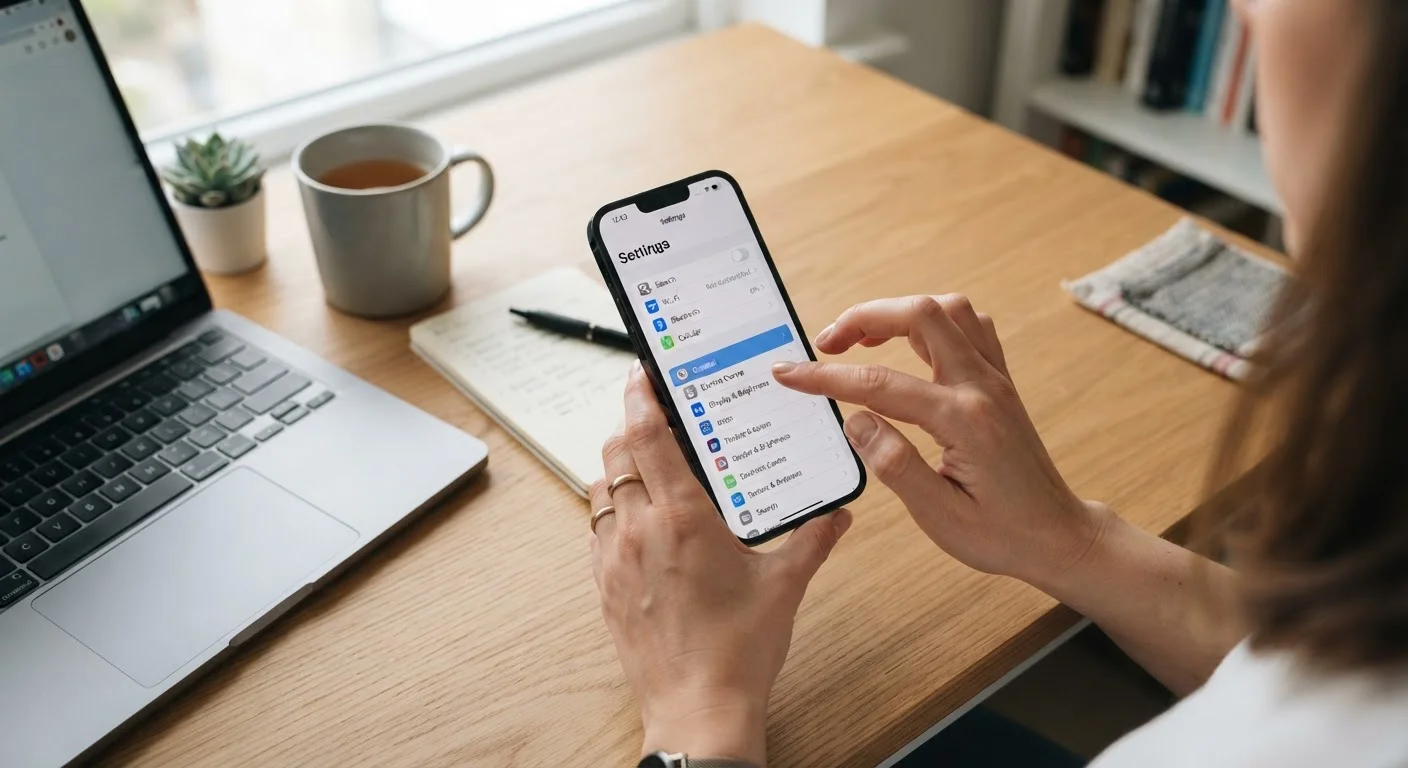
The Settings Gap: Why Defaults Don't Always Work for You
When a new phone, laptop, or smart TV leaves the factory, its settings are configured to get the device up and running quickly - not necessarily to serve your best interests over time. Manufacturers prioritize a smooth out-of-the-box experience, which often means data collection, broad permissions, and battery-unfriendly behaviors are switched on by default.
The good news: most of these settings are easy to change. You don't need technical expertise or special software. The adjustments below apply broadly across major operating systems and device categories. Specific menu paths vary by manufacturer and software version, so consult your device's help documentation if you can't locate a particular option.
For a broader look at how long these devices realistically last and what affects their lifespan, see our guide to consumer electronics lifespan.
Enable Automatic Software Updates
Security patches are the single most important software updates a device receives, and they only work if they're installed. Most devices offer automatic updates but don't always have them enabled by default, or users dismiss update prompts and never return to them.
On smartphones, check under Settings > General > Software Update (iOS) or Settings > System > Software Update (Android, though paths vary by manufacturer). On Windows laptops, look in Settings > Windows Update. Allow updates to install overnight so they don't interrupt your day.
Security patches only protect you when they're actually installed - enable automatic updates now.
Review App Location Permissions
Many apps request location access during setup, and users often grant it without a second thought. Over time, dozens of apps may hold "always on" location permissions - including apps that have no clear functional need for it.
On both iOS and Android, navigate to Settings > Privacy > Location Services and audit each app. For most, "While Using the App" is appropriate. "Always" access should be reserved for navigation or safety apps where background location genuinely improves function. Revoking unnecessary access limits data that gets shared with third-party advertisers.
Most apps function perfectly well with location access limited to "While Using" rather than "Always."
Limit Ad Tracking and Reset Your Advertising ID
Every smartphone carries an advertising identifier - a unique code that lets apps and advertisers build a profile of your behavior across different apps and services. On iOS, Apple introduced App Tracking Transparency, which prompts apps to request permission before tracking. You can review and revoke these permissions under Settings > Privacy & Security > Tracking.
On Android, go to Settings > Privacy > Ads to opt out of ads personalization or reset your advertising ID entirely. Neither action breaks app functionality; it simply limits cross-app behavioral profiling.
Resetting your advertising ID breaks the data trail advertisers use to profile your app behavior.
Turn Off Smart TV ACR (Automatic Content Recognition)
Most modern smart TVs use a technology called ACR to monitor what's on screen - including content from streaming apps, cable boxes, and game consoles - and send that data to the manufacturer and partners for ad targeting. ACR is typically enabled by default.
The setting is usually found in the TV's privacy or viewing data section, though its label varies: "Samba Interactive TV," "Live Plus," "Viewing Information Services," or similar. Check your TV's privacy settings or manufacturer support page for the exact name and location. Disabling it doesn't affect the TV's core streaming or smart features.
Smart TVs can monitor everything on screen by default - ACR is usually just one toggle away from being off.
Enable Battery Charge Limiting on Laptops
Lithium-ion batteries degrade faster when kept at 100% charge for extended periods. Many laptop manufacturers now include a built-in charge-limiting mode - often capped around 80% - that meaningfully extends long-term battery capacity for users who primarily work plugged in.
On Windows devices, this may appear in the manufacturer's power management app (common on Dell, Lenovo, and ASUS machines). On MacBooks, it's called Optimized Battery Charging under System Settings > Battery. For more on battery habits that affect longevity, see our guide to charging habits.
Keeping a laptop battery capped at 80% while plugged in can significantly extend its usable lifespan.
Audit Microphone and Camera Permissions
Like location, microphone and camera access can accumulate across apps over time. A shopping app or productivity tool rarely needs microphone access; granting it anyway creates unnecessary exposure.
On iOS: Settings > Privacy & Security > Microphone (and Camera). On Android: Settings > Privacy > Permission Manager. Review which apps hold these permissions and revoke access for any that don't have an obvious functional reason to need them. For context on how voice-activated devices specifically handle audio, our smart speaker privacy explainer goes deeper.
Microphone and camera permissions accumulate silently - a periodic audit takes minutes and reduces real exposure.
Set a Lock Screen Timeout That Actually Locks
Many users extend their screen timeout for convenience - or disable auto-lock entirely - and then forget about it. A device that stays unlocked for five or ten minutes after last use is significantly more vulnerable to unauthorized access if lost or left unattended.
Security guidance from major operating system vendors generally recommends a timeout of 30 seconds to 2 minutes for devices carrying sensitive information. Set this under Settings > Display or Settings > Security depending on your platform. Pair it with a strong PIN, passphrase, or biometric lock for effective baseline protection.
A generous screen timeout is one of the most quietly risky default settings on any phone or tablet.
Small Changes, Meaningful Gains
None of these adjustments require expert knowledge, and most take under five minutes. The cumulative effect - better security posture, reduced data exposure, longer battery life, and a less cluttered experience - is worth the one-time effort.
If you share devices with others or travel frequently, the stakes are higher. Our guide to device safety while traveling covers additional steps specific to public Wi-Fi and border crossings. And if smart home devices are part of your setup, maintaining security after setup is equally important - vulnerabilities often emerge long after the initial install.
Build a Quarterly Settings Review Habit
Operating system updates sometimes reset or introduce new privacy and permission settings without obvious notification. Setting a reminder every three months to scan through your key settings - location, microphone, camera, and updates - keeps your configuration current. It takes under 10 minutes and addresses the slow drift that makes devices less secure over time.
The content on this site is provided for informational purposes only and should not be considered a substitute for professional advice. While we strive to provide accurate and up-to-date information, we make no guarantees regarding its completeness or accuracy. Always consult a qualified professional for advice specific to your circumstances before making any decisions.